> ## Documentation Index
> Fetch the complete documentation index at: https://docs.useconquest.com/llms.txt
> Use this file to discover all available pages before exploring further.
# Discord Integration
> Connect your Discord community to get a complete overview of your members and community activity.
The Conquest Discord integration enables you to access and manage community data from your Discord server. Gain insights into member activities, threads, messages, replies, reactions history, all in one place.
We only collect data from the last 90 days.
## Data collection
The integration collects information about:
### Members
* **Full Name**
* **Username**
* **Avatar** if provided
* **Join server date**
* **Roles**
We do not collect:
* **Email**
* **Bio**
### Conversations
* **Active Threads** from public channels
* **Archived Threads** from public channels
* **Messages** from public channels
* **Replies** from public channels
* **Reactions** from public channels
## Activity Types
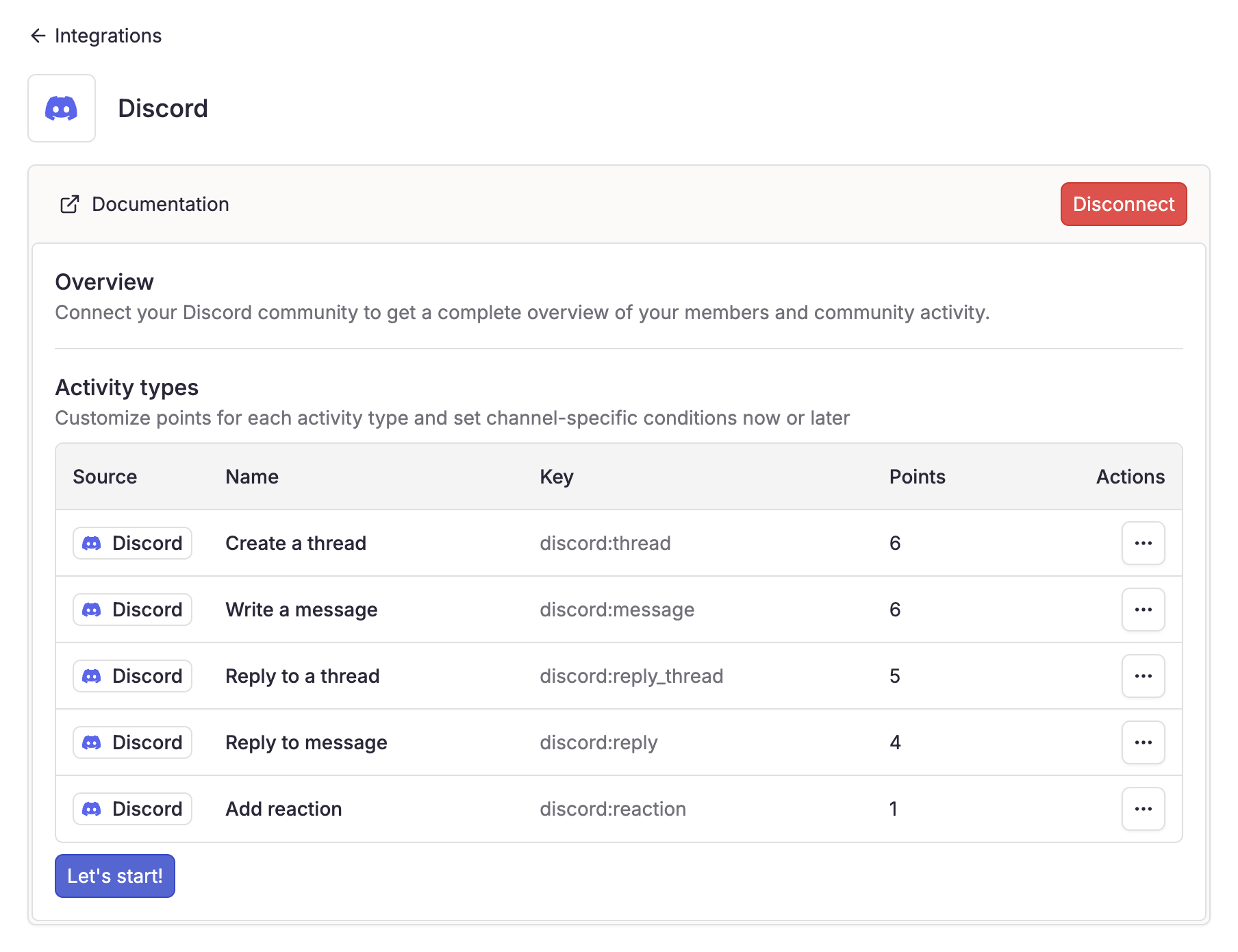
When you connect your Discord server, activity types are automatically generated and integrated.
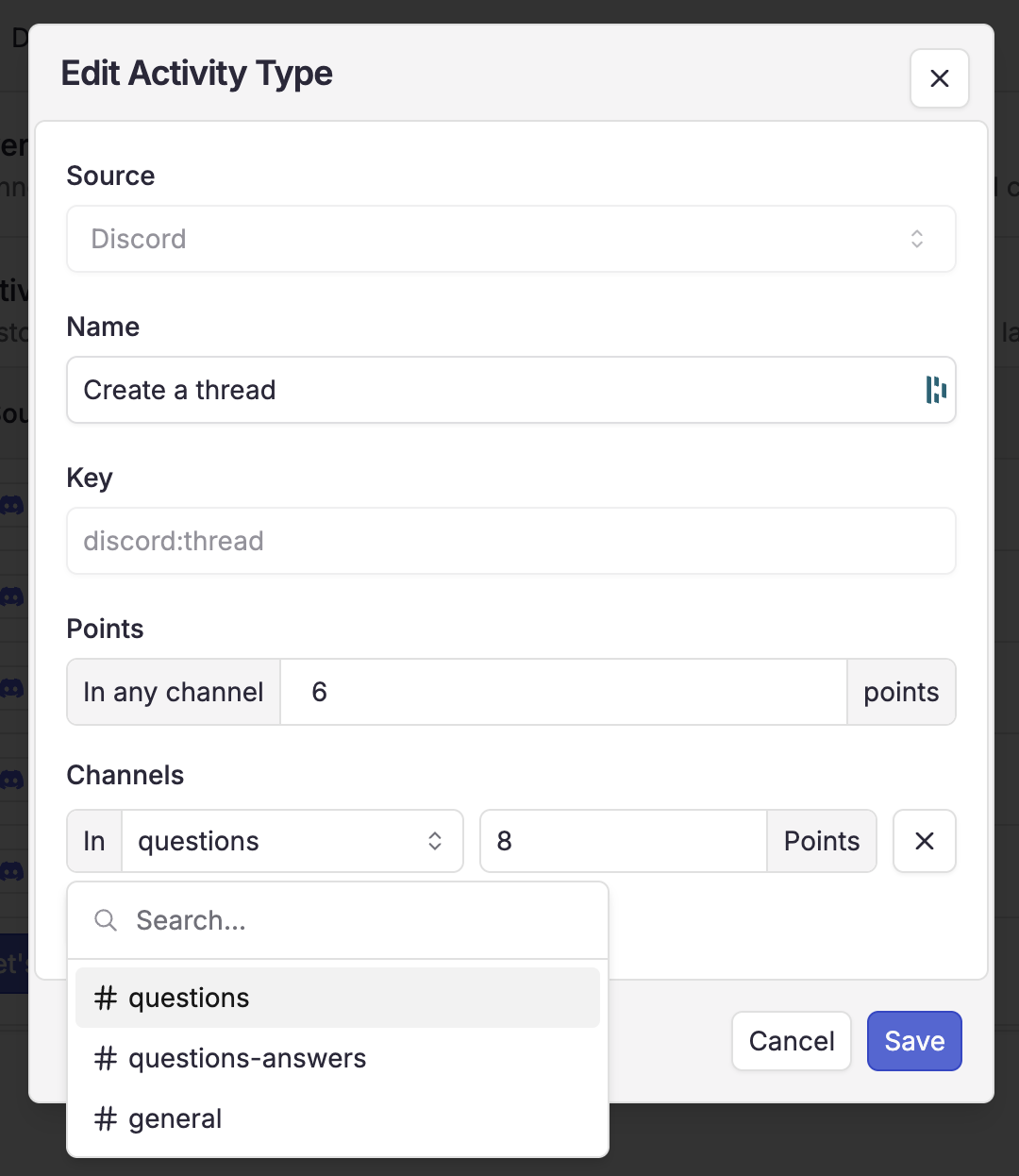
Activity points can be customized to fit your community's scoring system.
* **Create a thread**
* **Reply to thread**
* **Write a message**
* **Reply to message**
* **Add reaction**
## Real-Time Updates
Once connected, Conquest syncs the following events in real-time:
* **Members joining the server**
* **Members updates**
* **Members removed from the server**
* **Threads, messages, replies, reactions in public channels**
* **Creation, updates, and deletion of public channels**
* **Creation, updates, and deletion of roles**
## Setup guide
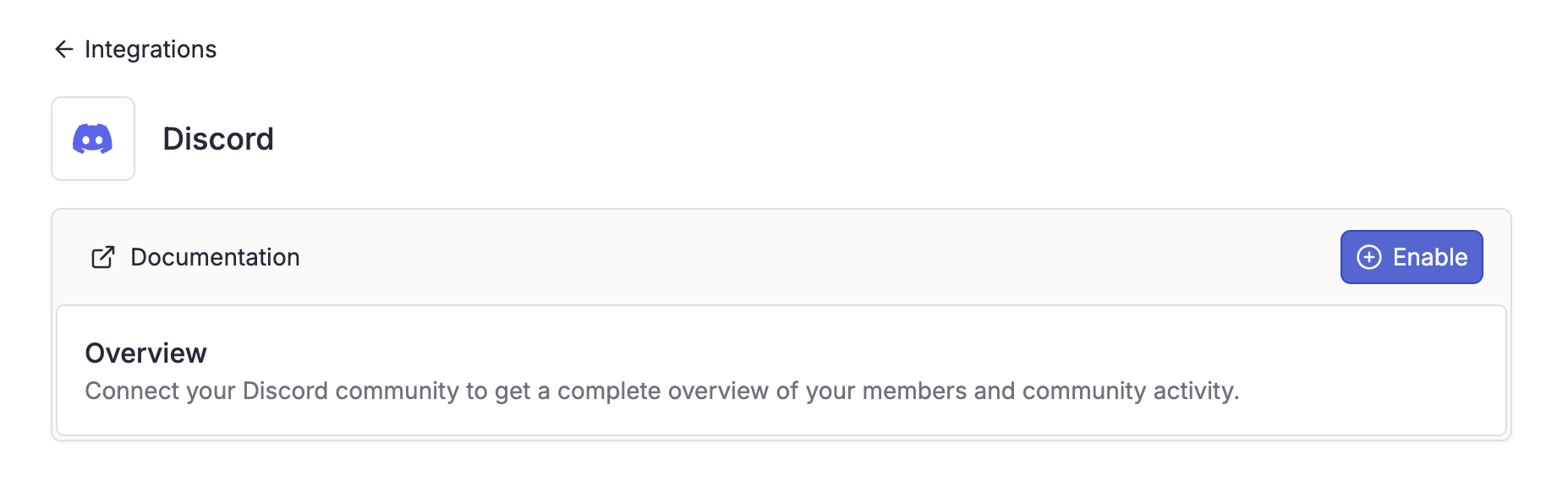
1. Navigate to **Settings** > **Integrations**.
2. Select **Discord**.
3. Click **"Enable"** to start the connection process.
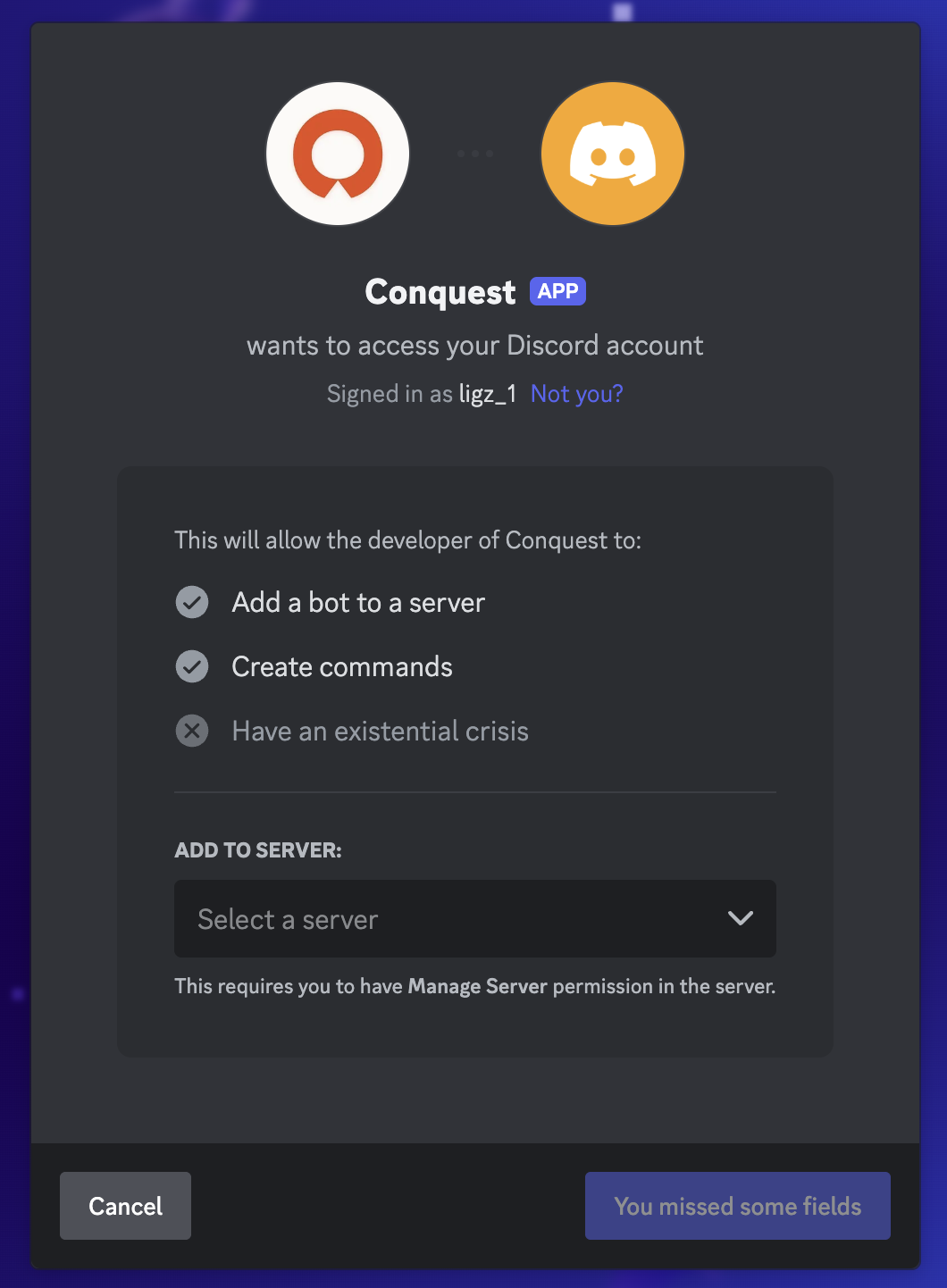
 Complete the OAuth process on Discord.
You must be an admin of the Discord server.
Complete the OAuth process on Discord.
You must be an admin of the Discord server.
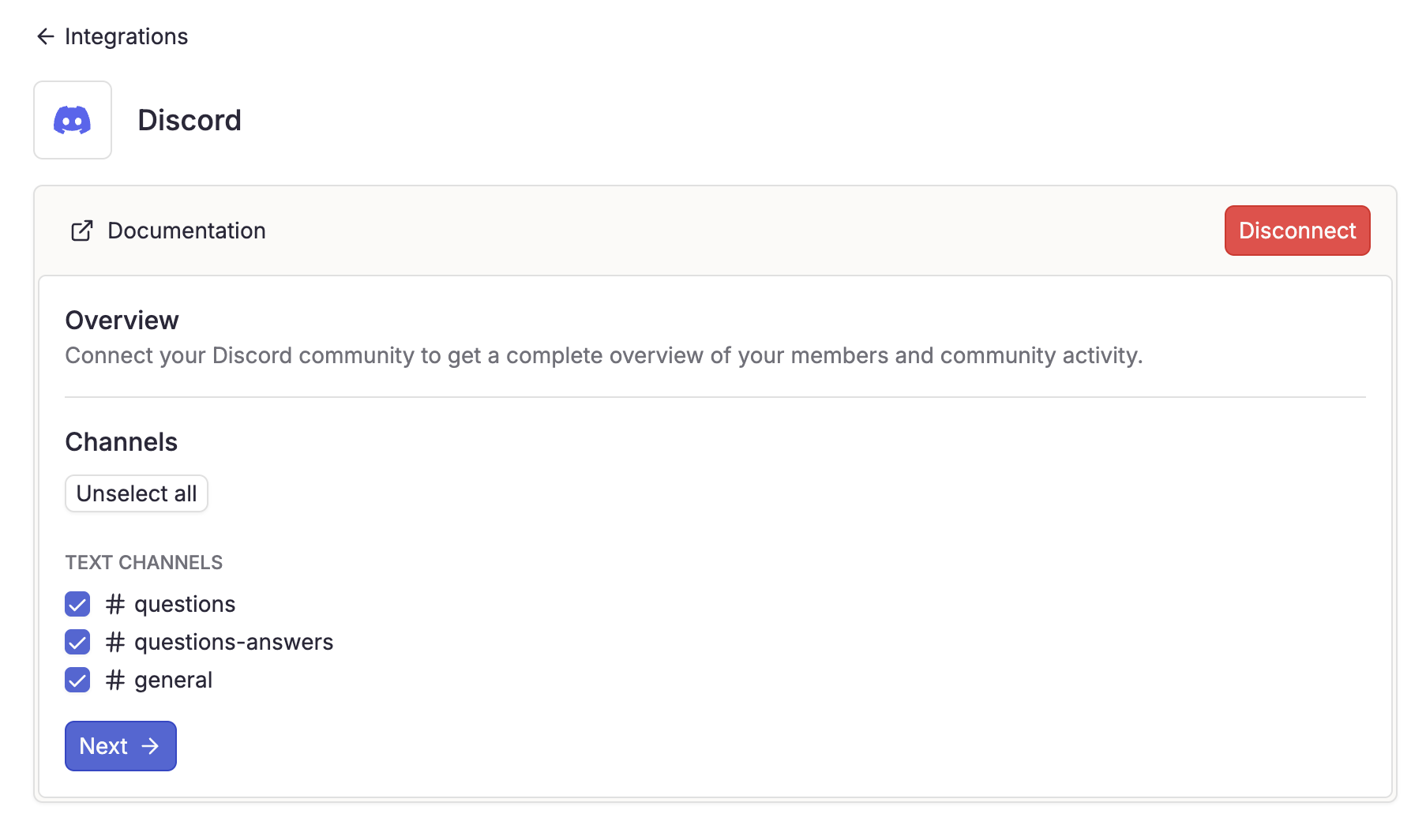
 Once authorized, you'll be redirected to Conquest to select public channels for data collection.
1. Select the channels you want to collect data from
Once authorized, you'll be redirected to Conquest to select public channels for data collection.
1. Select the channels you want to collect data from
 ### Missing channels
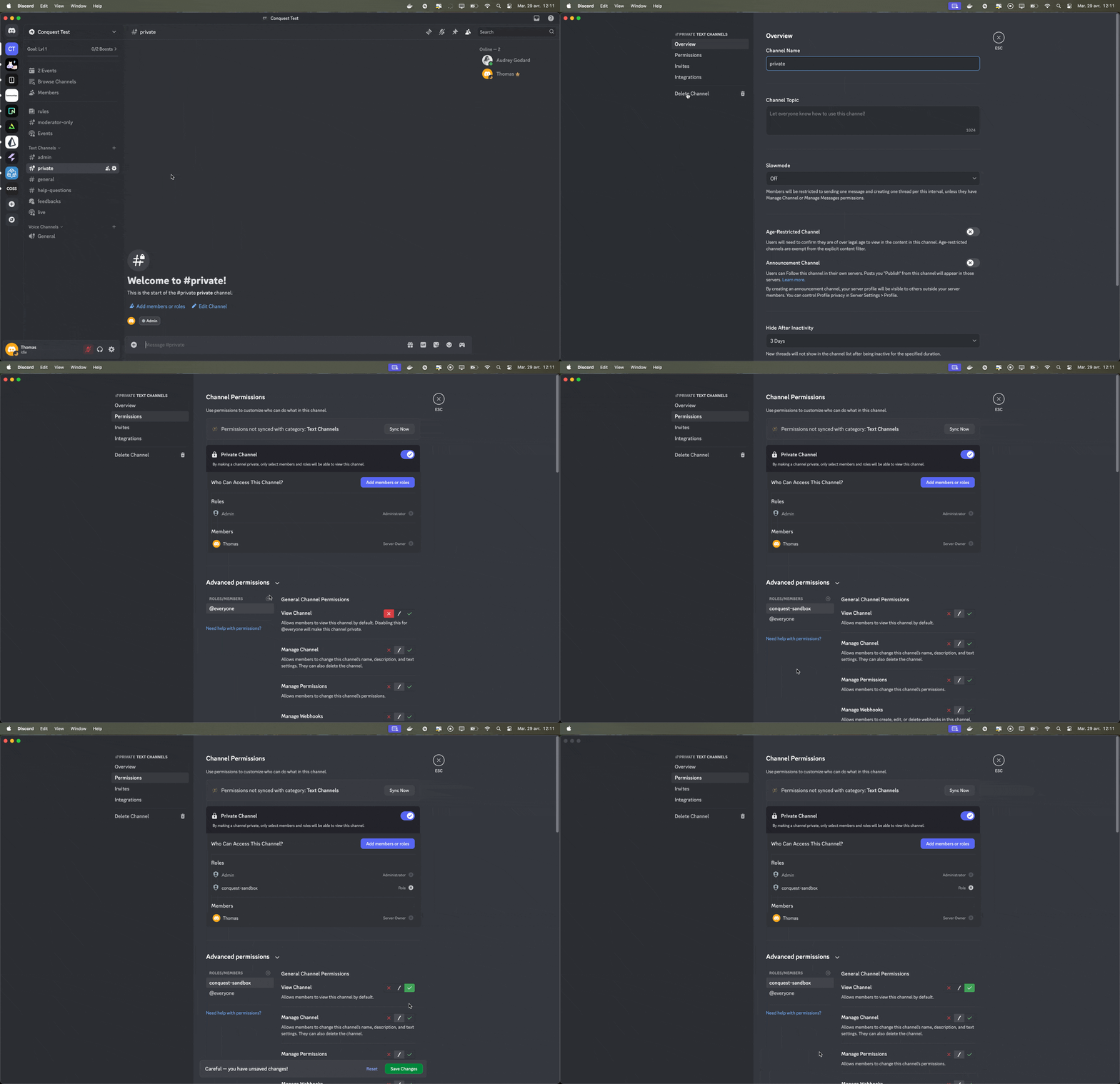
If you don't see your channels, you have to overwrite your channel permissions.
1. Go to **"Edit Channel"**
2. Click on **"Permissions"**
3. Go to **"Advanced permissions"** section
4. Click on **"+"** near **"roles/members"**
5. Select **"Conquest"** in **"roles"** section
6. Overwrite the permission **"View Channel"** by selecting the green check.
7. Click on **"Save changes"**
8. Refresh the Conquest page to see the new channel.
Repeat this process for every channel you want to collect data from.
### Missing channels
If you don't see your channels, you have to overwrite your channel permissions.
1. Go to **"Edit Channel"**
2. Click on **"Permissions"**
3. Go to **"Advanced permissions"** section
4. Click on **"+"** near **"roles/members"**
5. Select **"Conquest"** in **"roles"** section
6. Overwrite the permission **"View Channel"** by selecting the green check.
7. Click on **"Save changes"**
8. Refresh the Conquest page to see the new channel.
Repeat this process for every channel you want to collect data from.
 Conquest automatically generates activity types based on the data collected.
You can add conditions on specific channels to fit your community's scoring system.
Conquest automatically generates activity types based on the data collected.
You can add conditions on specific channels to fit your community's scoring system.
 The data collection duration depends on your community size and can take from a few minutes to several hours to complete.
## FAQ
* Confirm that you are an admin of the Discord server
* Ensure you are logged into the correct Discord account
## Need Help?
For any issues with your integration, our support team is here to help:
[support@useconquest.com](mailto:support@useconquest.com).
Get additional support and answers by connecting with other Conquest users in our community:
[Slack](https://join.slack.com/t/useconquest/shared_invite/zt-2x4fg4fut-7k0G3_D649TkfPc5WIPdgA).
The data collection duration depends on your community size and can take from a few minutes to several hours to complete.
## FAQ
* Confirm that you are an admin of the Discord server
* Ensure you are logged into the correct Discord account
## Need Help?
For any issues with your integration, our support team is here to help:
[support@useconquest.com](mailto:support@useconquest.com).
Get additional support and answers by connecting with other Conquest users in our community:
[Slack](https://join.slack.com/t/useconquest/shared_invite/zt-2x4fg4fut-7k0G3_D649TkfPc5WIPdgA).